
Four Ways to Add Subtitles to Your Instructional Videos
Instructional video is at the heart of a Modern Classroom. But a video without captions leaves students behind. Whether you teach English Language Learners, students with learning differences, or kids who simply learn better when they can read along, subtitles make your instruction more accessible to all. Here are four methods, from the simplest one-step option to more advanced techniques.
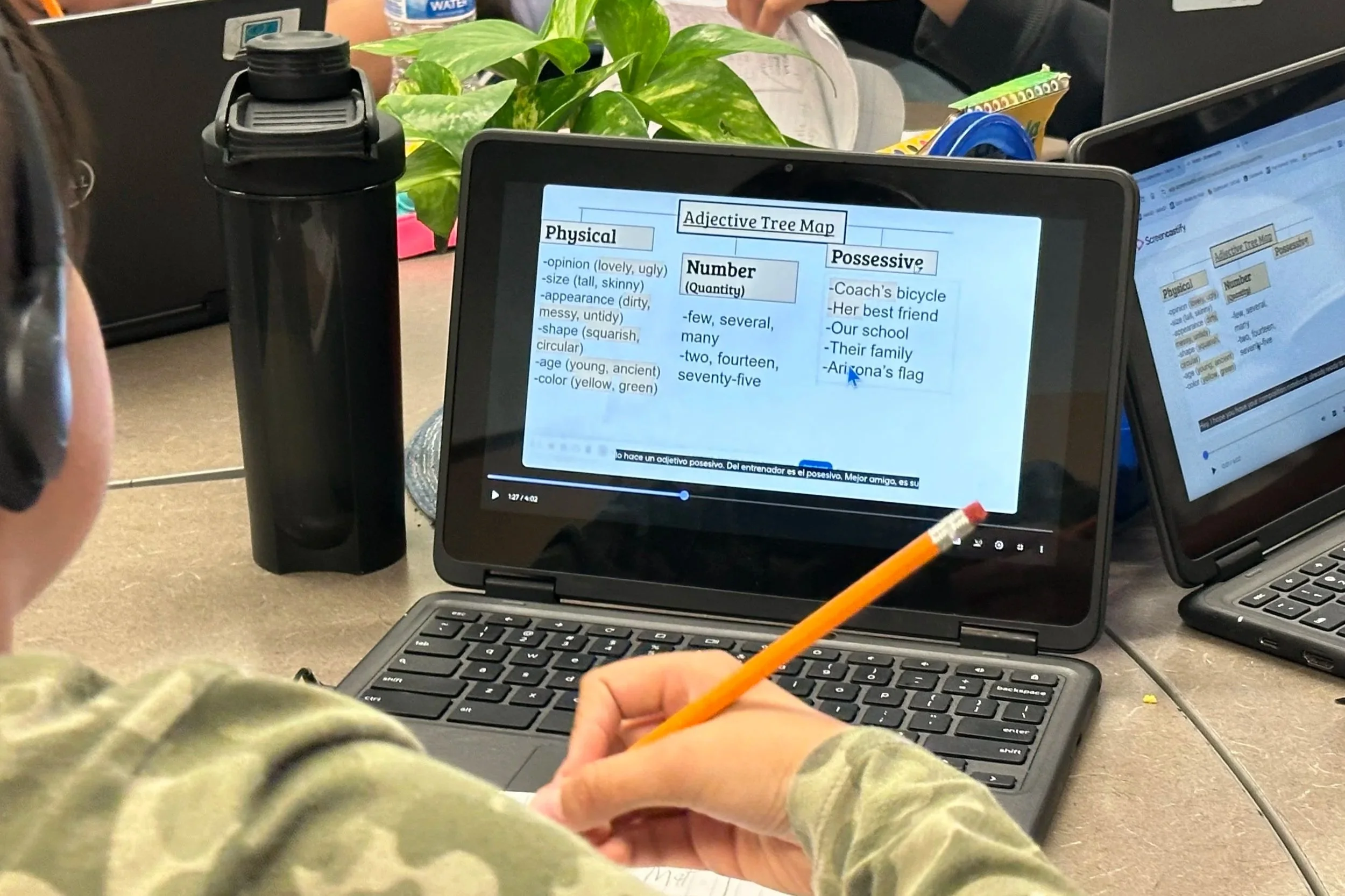
The research is clear: captions benefit all students, not just those with hearing differences. Studies from EDUCAUSE find that the majority of students without any hearing difficulty use captions regularly and that they improve focus, comprehension, and note-taking. SRI's meta-analysis of online and blended learning similarly points to accessible video as a key driver of learning outcomes. For students who are still developing English proficiency, captions can be the difference between accessing your instruction independently or needing to wait for teacher support.
In this video, MCP Expert Mentor Zach Diamond explains the research behind using video to support your instruction.
Before you can get started with instructional videos, you need a solid tool to record your screen and your voice, at a minimum. We mostly recommend one of the following tools:
ScreenPal: works on any platform, allows unlimited free videos, and makes adding captions easy.
Screencastify: works on Google Chrome, 10 videos free, allows adding and translating captions.
Educators who enroll in our Mentorship Program get premium access to both tools for free!
If you already record your lessons using presentation software or Zoom, this method requires no new tools at all. Google Slides, Microsoft PowerPoint, and Zoom all have built-in live captioning that transcribes your speech in real time as you present. When you record your screen, those captions are captured right along with your instruction. While it's not the most polished option, educators who want to start captioning their videos today without learning anything new, this is the fastest path to get there.
Alternative Method: Descript
Descript takes a different approach: instead of generating captions live as you speak, it transcribes your video after the fact and gives you a text-based editor to review and clean up the transcript before the captions are burned in. This makes it the most accurate and most flexible of the four methods, since you can correct any transcription errors, reformat how captions appear on screen, and produce a polished final video. The tradeoff is a slightly longer workflow. If accuracy and presentation matter to you, especially for videos you plan to reuse across multiple classes or school years, Descript is worth the extra steps.
The methods above all produce "open captions" (text that's baked into the video and always visible). However, closed captions are stored separately as a VTT file and can be toggled on or off by the viewer. Closed captions also make it possible to offer multiple language tracks in a single video, which is especially powerful in multilingual classrooms. This approach takes more steps and requires a few additional tools, but once you've built the workflow it's repeatable. Watch the video below for a step-by-step walkthrough of how to generate a VTT file, clean it up, and embed it into a Google Drive-hosted video.
Captions are one of those investments that compound over time. A video you caption today is a video that works better for every student who watches it, now and in future years. Start with whichever method fits where you are right now, and build from there.
Next Steps
If you want to go deeper into building a self-paced, blended classroom that works for every learner, you are invited to learn more about our model in our Free Online Course.
Subtitles pair especially well with guided notes, another tool that keeps students engaged and accountable as they move through self-paced video content.
Once your videos are captioned, organizing them effectively in your LMS is the next step. See our guides for Canvas setup.