Optimize Canvas for your Elementary Modern Classroom
We collected the best practices from elementary educators using Canvas as their Learning Management System (LMS) while implementing a Modern Classroom.
Why Canvas?

Canvas is a web-based learning management system that allows educators and students access to blended, self-paced, mastery-based learning.
Elementary educators may find the following features useful to meet the needs of their students:
Ability to simplify the student experience
Options for content delivery & assessment
Canvas for Elementary theme
Integration with Google and Microsoft Office
Many districts purchase Canvas for their educators and you may have access to more features than are listed here. Canvas is also available for free for educators.
Tip #1: Simplify the Student Experience
Limiting the number of clicks students need to make to find their learning materials is key to making Canvas accessible, especially for young learners. Fewer places to navigate means fewer opportunities to get lost!
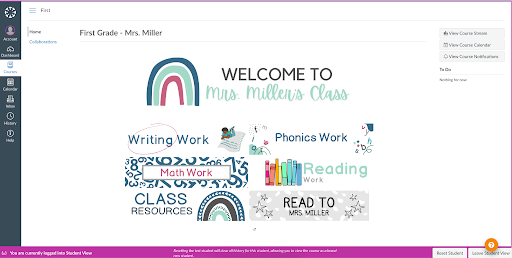
In settings, hide pages that students don’t need to access.
If possible, use one course for all subjects.
Create buttons in homepage for easy navigation between subject areas.
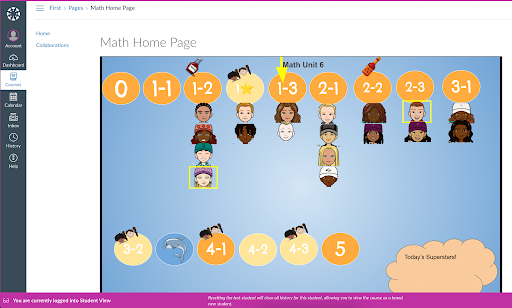
Link buttons to progress trackers by subject embedded in Pages.
Embed links to activities in the progress tracker.
Tip #2: Utilize the Various Content Delivery & Assessment Options
Utilizing a variety of turn-in options engages all learners by allowing educators to assess understanding in different ways.
Assignments can be marked to be turned in online, on paper, or using an external tool.
Online submissions include text responses, video recordings, and picture uploads.
Assignments turned in on Canvas can be easily graded in SpeedGrader and given written, audio, or video feedback.
A discussion assignment allows students to respond in video form to a prompt and to their peers.
With 12 different types of questions, the quiz option works well for mastery checks or summative assessments.
Tip #3: Create an Elementary-Level Theme
Some districts have the option of using Canvas for Elementary. This feature allows for an even easier navigation for students by allowing educators to set up a homeroom course as well as a course for each subject.
“Courses” changed into “Subjects.”
Homeroom announcements and subject-specific announcements are available in this version.
Students with teachers who departmentalize can still access all their subjects in one place.
Updated font for easier readability
Additional icons for navigation
Read more about how to use Canvas for Elementary.
Tip #4: Integrate with Popular Apps
Canvas allows for a variety of apps to be integrated into the LMS, including many free apps. Whether you are a Google or Microsoft school, there are ways to integrate and streamline assignments and grading.

Google Assignments LTI
Streamlines assignment distribution
Grade with Canvas SpeedGrader or Google Assignments
Educators can see student progress on Google Assignments
Ensure educators and students only use school-issued accounts
Read more and watch a video about Canvas + Google Assignments LTI.
Microsoft Office 365
Use single sign-on technology to log in to Canvas
Create documents in Office 365 and submit them as Assignments
Grade with SpeedGrader
Link to Office 365 docs in the Canvas Rich Content Editor
Push assignments and grades directly from the OneNote Class Notebook to Canvas
Read more and watch a video about Canvas + Microsoft Office 365 Integration.
Next Steps in Canvas
As you begin using Canvas for your elementary learners, remember that Canvas can do many things. Don’t feel like you have to use all of the features, especially to start. Your learners will benefit from a simple, easy-to-navigate LMS. You can always add more later! See below for how you might start.
Must Do
✓ Create your Canvas course or log into your district provided Canvas homepage.
✓ Edit the layout of your homepage to meet the needs of your learners.
✓ Create a course that is easy to navigate and well-organized, and teach your students how to use it.
Should Do
✓ Explore the free Canvas Training opportunities to deepen your understanding and find new ways to use Canvas.
✓ Embed your progress tracker into a page, linking assignments to the tracker where possible.
Aspire to Do
✓ Collaborate with colleagues to share ideas for Canvas best practices.
✓ Try using outcomes to track mastery within your course by using the Learning Mastery Gradebook.