A Comprehensive Guide to Progress Tracking
In every classroom, students should know exactly what they will work on each day. This helps learners get right to work, fosters collaboration, and allows the educator to provide differentiated support. In self-paced classrooms, this is a critical tool to support student learning.
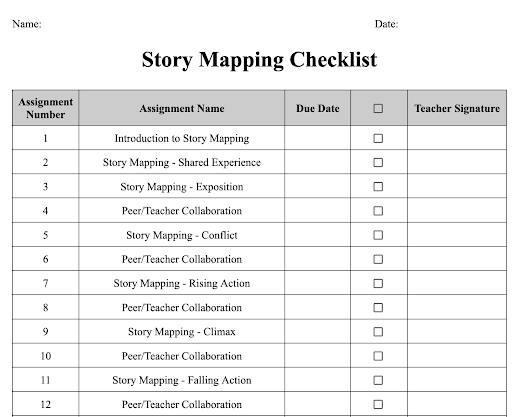
This 4th grade individual student progress tracker lays out assignments for students, giving a space for a due date and teacher signature. Some educators use the signature space to mark completion of the mastery check.
Make your own copy of our Google Slide Template or Microsoft Powerpoint Template.
To do this, we recommend that Modern Classroom educators create progress trackers that:
Indicate clearly what each student needs to do.
Display student’s progress (not grades).
Are easily updated – at least daily, if not more often.
Facilitate collaboration between students in similar places.
Use positive framing and reinforcement to celebrate effort and growth.
First Steps to Adding a Progress Tracker to Your Classroom
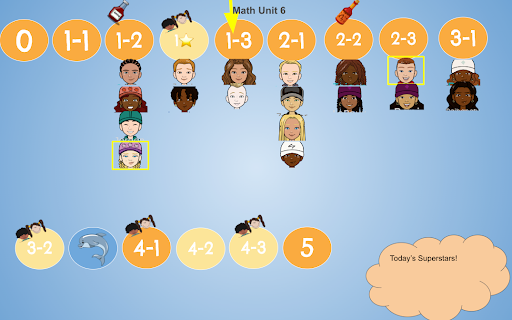
This first-grade whole-group tracker has color-coded lesson classification and various emojis indicating group work, on pace, ahead of pace, and catching up (see speaker note comments for more details). The circle is also hyperlinked directly to the lesson on the educators LMS, making navigation easy for young learners.
Make your own copy of our Google Slide Template or Microsoft Powerpoint Template
Look through these templates that we know work. Choose one that seems to fit your class the best, copy it, and go!
As you create your progress tracker, consider the following questions:
How many lessons will I include on my tracker so that I don’t overwhelm learners?
How will students access and use the progress tracker I create?
Where will the progress tracker be located and how will I reference it in daily routines?
Remember, you will likely make changes as you begin using it and that’s okay - in fact, we recommend seeing what works and improving what doesn’t!
Whole-Group Progress Trackers
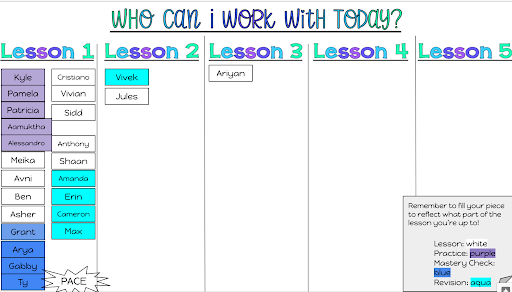
This third grade whole-group tracker has an emphasis on collaboration, with students color coding their name based on what part of the lesson they are working on. The educator can also hyperlink the lesson name at the top to their LMS for easy navigation.
Make your own copy of our Google Slide Template or Microsoft Powerpoint Template.
Our teachers use whole-group progress trackers to encourage hard work, grit, and collaboration. Using a tracker effectively is all about framing. If students see it as a reflection of their work ethic and a tool to inspire collaboration, they’ll be motivated to work harder and to learn from peers who have the knowledge they need.
Most of our educators have received littlepushback on their use of whole-group trackers in their classroom. Any issues generally stemmed from a misunderstanding of the tracker’s purpose and what it reveals.
Key points to address if misunderstandings arise:
Teachers do not display grades or ability, just progress through a specific unit.
Students always have the opportunity to catch up.
The tracker should not reflect ability level but instead effort. If it reflects ability level, then differentiation needs to be addressed.
It can be a very powerful tool for collaboration. Students can identify peers who have mastered skills and can support them without having to go straight to the teachers.
Alternatives to listing students, by name, on a public pacing tracker:
Whether you use a whole-group tracker is completely your choice. We have a number of teachers who only use individual trackers. Alternatively, you can take some pressure off by using student initials, emojis, or nicknames. This can make the tracker feel more friendly to students as well as parents.
More Whole-Group Tracker Examples
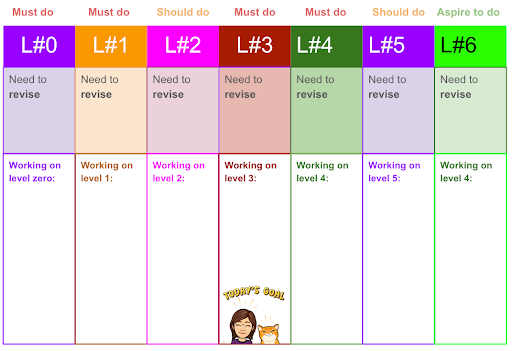
Add color and bitmojis to your tracker! This 5th grade tracker encourages collaboration by allowing students to see others working on the same lesson. Consider using color to align with your lesson classification.
Make your own copy of our Google Slide Template or Microsoft Powerpoint Template.
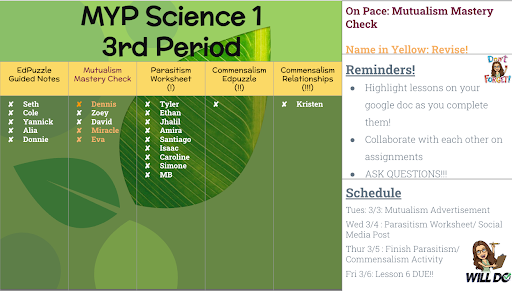
This middle school science tracker is a straightforward template that can help encourage group work by allowing students to see others that they can ask for help or collaborate with.
Make your own copy of our Google Slide Template or Microsoft Powerpoint Template.
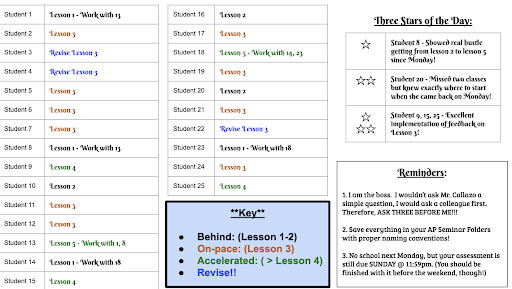
This AP Seminar tracker has built-in student recognition. We love the “three stars of the day” motivational strategy in this tracker.
Make your own copy of our Google Slide Template or Microsoft Powerpoint Template.
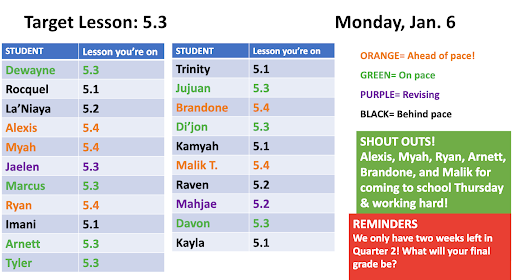
This 12th grade math tracker has a colorful box to remind educators to shoutout students who work hard and help their peers. The reminder space is also helpful to keep learners on track and provide motivation!
Make your own copy of our Google Slide Template or Microsoft Powerpoint Template.
No Tech Whole-Group Trackers
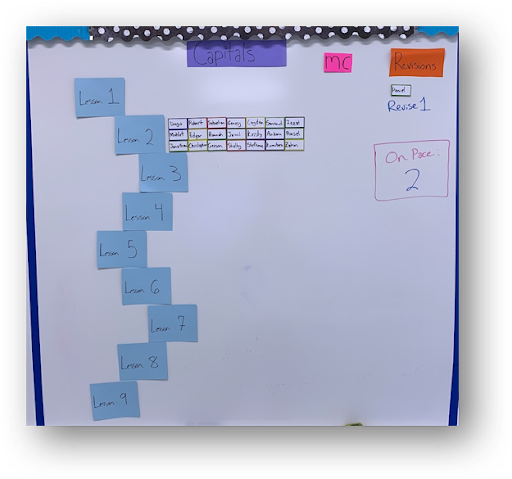
In this middle school classroom, student names are written on magnets that students can move when they progress to the next lesson. Student names are moved to the “revision” section of the board to indicate they are revising a lesson. The educator also includes a section that tells students what lesson is “on pace.”
Materials needed: Magnetic board, magnets.
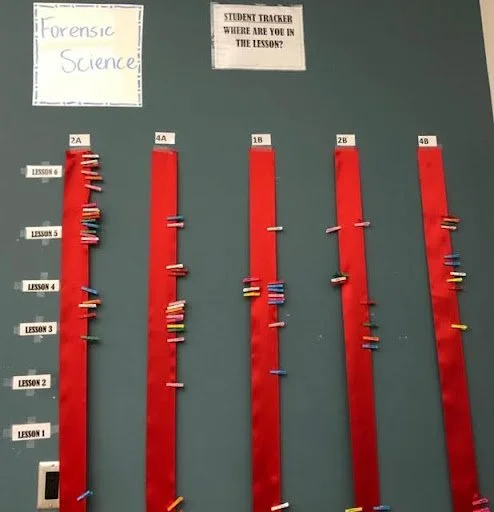
This physical whole-group tracker allows students and teachers to quickly see where students are on different assignments. This educator has a red strip for each class period and a clothespin for each learner.
Materials needed: Thick ribbon or strips of paper, clothespins, labels.
Individual Progress Trackers
Individual progress trackers allow students to chart their own progress through a lesson, a series of lessons, or a complete unit.
Many educators choose to use game boards or checklists for these trackers, while others use a staircase visual. These trackers can be kept digital or printed for students to keep with their materials.
These trackers may not be as accurate as your own teacher tracker or gradebook, but they do give student some ownership as they progress through a learning sequence. Often educators will use these in combination with a whole-group progress tracker. If you are only using an individual tracker, consider creating a plan to check in with students and review their progress trackers.
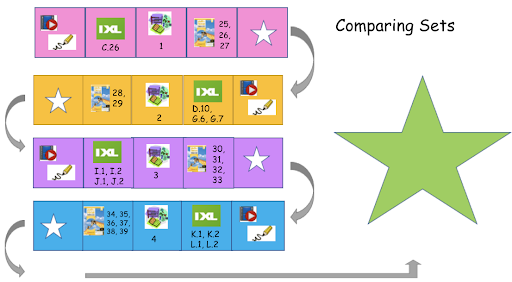
This tracker serves as a roadmap through an entire unit, with each lesson visually broken down by activity. Each block indicates a different activity, with the final activity in each sequence being the Mastery Check.
Make your own copy of our Google Slide Template or Microsoft Powerpoint Template.
More Individual Progress Tracker Examples
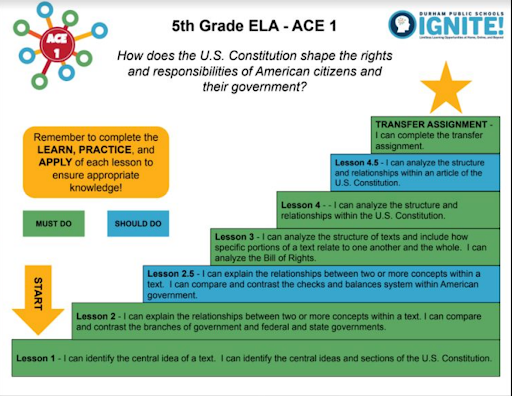
This staircase tracker for 5th grade ELA presents each step of the unit clearly, including lesson classification. Consider linking directly to the lesson your LMS for each “step” of the staircase.
Make your own copy of our Google Slide Template or Microsoft Powerpoint Template.
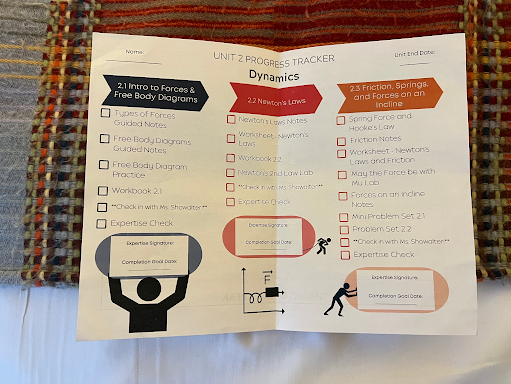
This 11th grade educator includes three lessons in a unit in her progress tracker, showing students each part of the lesson. Breaking down lessons like this helps students stay on track throughout a longer lesson. You could also mark some pieces of the lesson as Must Do, Should Do, or Aspire to Do.
Make your own copy of our Google Slide Template or Microsoft Powerpoint Template.
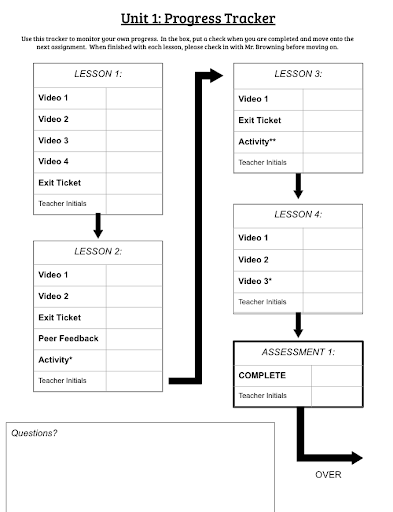
This AP seminar tracker makes each step of a lesson - and lesson progression - very clear for students. Note that for many students, seeing this many lessons to start may be overwhelming. Consider having fewer lessons on each page to make it more digestible for learners.
Make your own copy of our Google Slide Template or Microsoft Powerpoint Template.
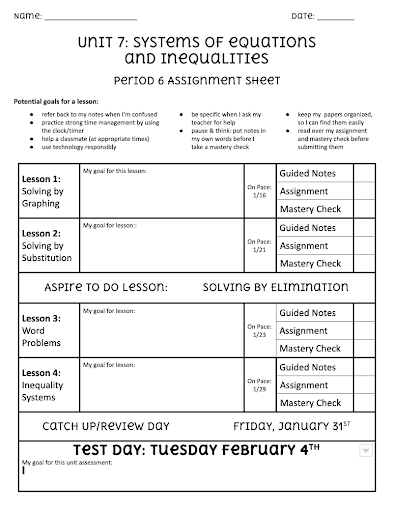
This 9th grade educator makes a simple, student-friendly checklist for every unit she teaches. This tracker encourages students to set goals for each lesson and for the unit assessment. Notice that all students take the unit assessment on the same date.
Make your own copy of our Google Slide Template or Microsoft Powerpoint Template.
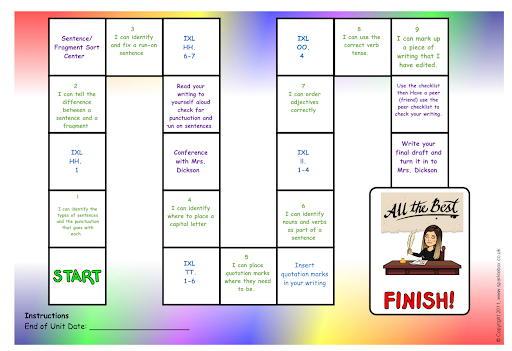
This elementary game board includes check-ins with the teacher as well as lessons that are color-coded based on classification.
Make your own copy of our Google Slide Template or Microsoft Powerpoint Template.
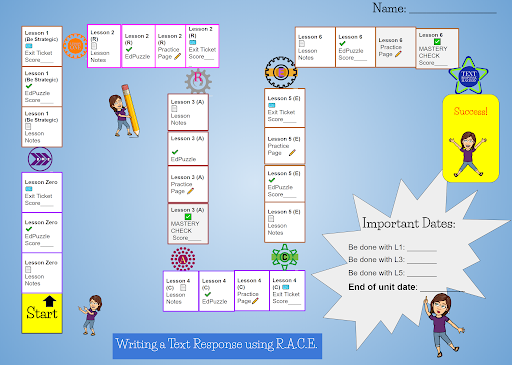
This elementary tracker serves as a roadmap through an entire unit, with each lesson visually broken down by activity.
Make your own copy of our Google Slide Templateor Microsoft Powerpoint Template.
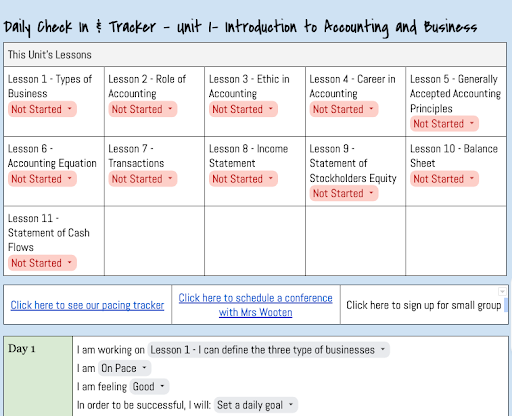
This high school accounting educator has combined a student-facing tracker with a public pacing tracker, allowing students to track their own progress but also find opportunities for collaboration. Students also set goals each day at the bottom of the tracker.
Make your own copy of our Google Doc Template or Microsoft Word Template.
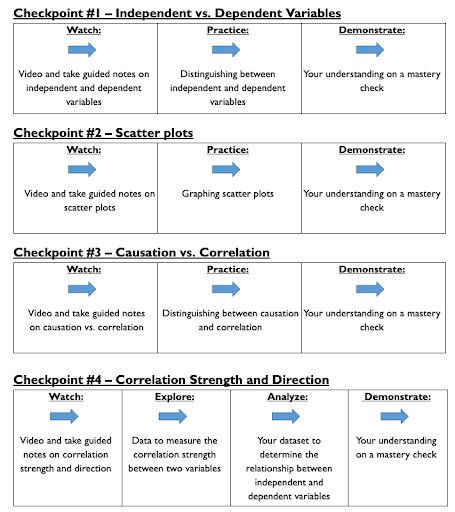
This is a student game board that has each lesson broken down into three or four tasks. Consider only showing students one section at a time to reduce cognitive load and help learners feel successful.
Make your own copy of our Google Slide Template or Microsoft Powerpoint Template.
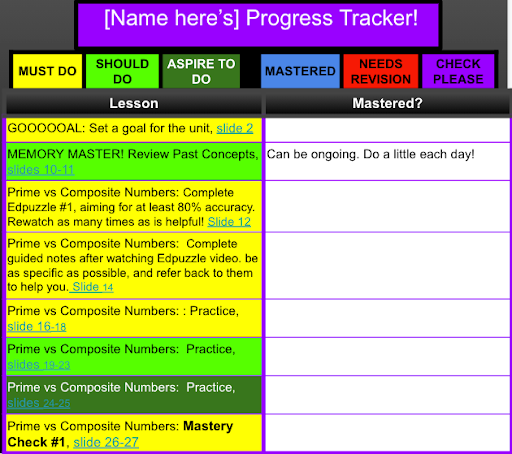
This teacher’s personalized Google Slide deck is worth checking out! Each lesson on this student checklist has its own slide, linking students to relevant instructional materials. Teachers and students can leave each other notes.
Make your own copy of our Google Slide Template (and here).
Teacher Trackers
Some educators also find it important to easily see what each student is working on to help them know who they need to meet with first in a small group. For this, educators create their own teacher progress tracker.
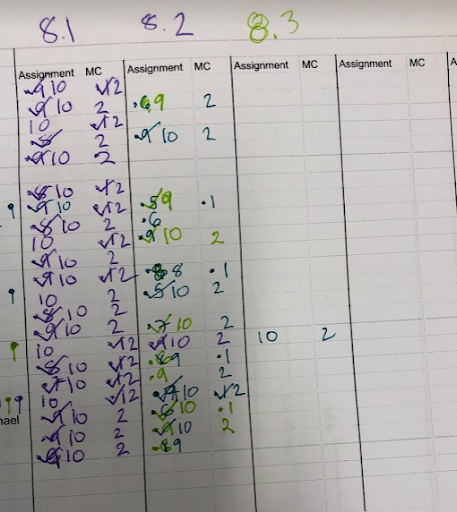
Nora is one such teacher who uses these. She says “These trackers are stapled together and they live on a clipboard that I carry with me all class. At the end of each day, I update my public tracker based on my teacher-facing tracker.
My Teacher-Facing Progress Tracker Routines:
When grading, if work is all correct →
Mark scoreAny mistake →
Revision occurs →
Small dot goes next to scoreWork has been revised →
Check off the dot and rewrite score
I cross out Should Do lessons for students that are behind if they don’t need to complete them.”
Public Progress Trackers and FERPA
The Modern Classrooms team has reviewed the Family Education Rights and Privacy Act (FERPA) along with our legal counsel. We believe that a whole-group progress tracker which does not display grades is permissible, as it is not an official record maintained by the school and does not display student grades.
With that said, we would advise any teacher who is concerned about FERPA to consider using alternatives (including using emojis rather than student names or using individual progress trackers). The practice of whole-group trackers itself has not, to our knowledge, ever been ruled on definitely, so our view is that teachers can use it if they are comfortable with it, but should absolutely consider alternatives where they are not.
We advise teachers who opt to use a whole-group progress tracker to frame it positively with their students, emphasizing that this is a tool to encourage hard work, clarity, and collaboration. We remind teachers that the whole-group tracker never displays grades or scores; it communicates progress through a specific unit. Teacher trackers are a great place to house grades and scores.
To read more about progress trackers and FERPA, you can read more on our blog.
Wavio Pulse: An All-In-One App
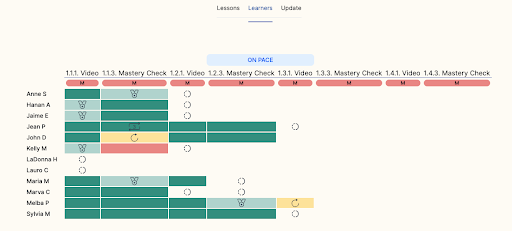
Wavio Pulse is an innovative online app for educators that simplifies tracking and mastery assessment.
Automatically generates individual and whole-group trackers
Consolidates mastery data in one convenient platform
Auto-Updating Progress Tracker
In this one-stop-shop tracker, you enter students’ progress - and this tracker does the rest. It automatically calculates each student’s pace and next lesson.
It generates:
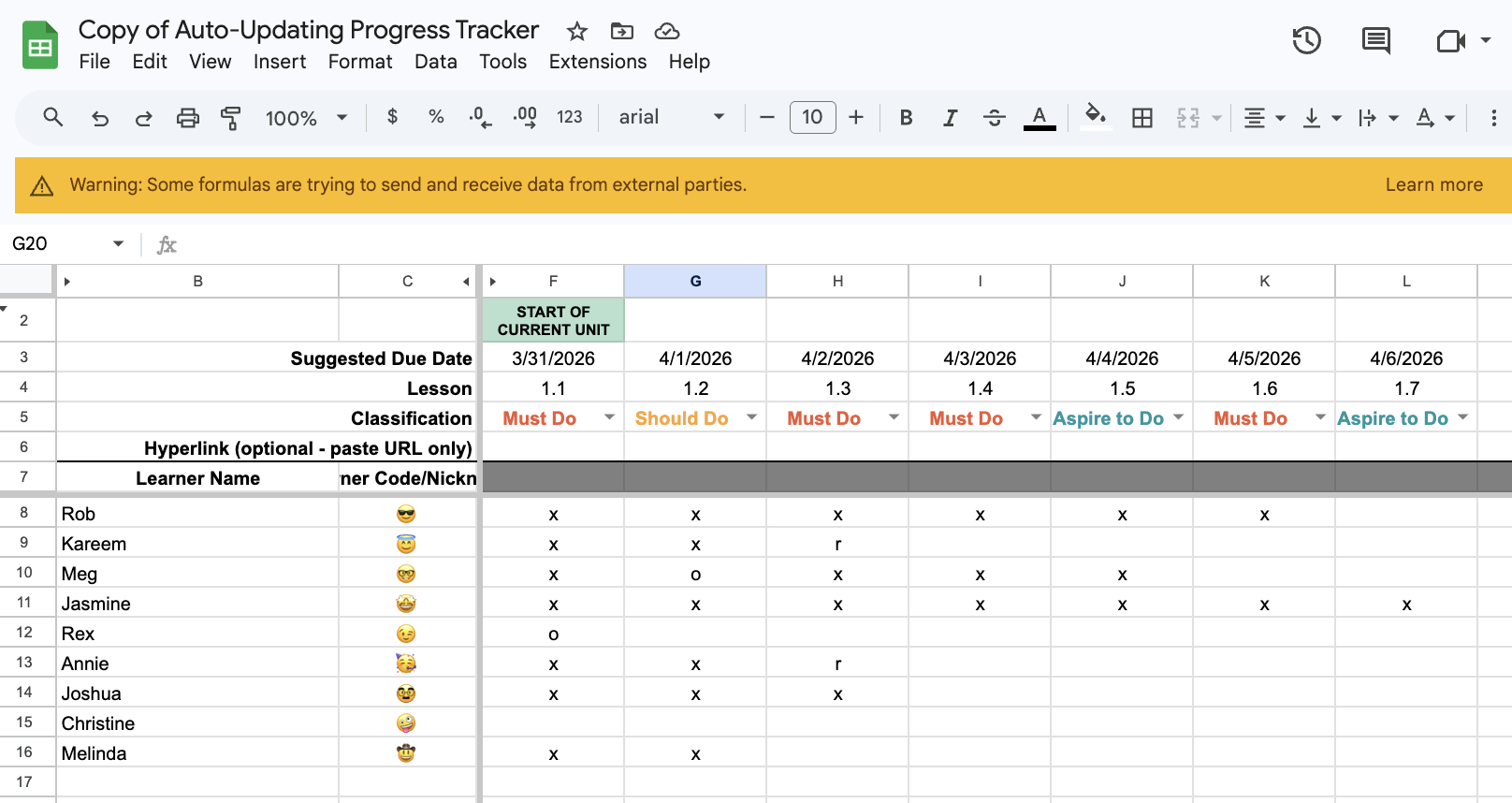
student groups
checklists
game boards,
and summary statistics!
All with the magic of a few simple formulas.
Keep Learning About Progress Tracking
Listen to the podcast episode 34, Monitoring Student Progress in a Modern Classroom.
Listen to the podcast episode 156, Progression vs. Grades. Don’t have a lot of time? Listen to the shortcast episode!
Eileen Ng shares how creating a visual representation of students’ performance can help students make sense of their skills and areas for growth in this Edutopia article.